![Hexatronic_Group_avatar_RGB.png]](https://knowledge.hexatronic.com/hs-fs/hubfs/Hexatronic_Group_avatar_RGB.png?width=40&height=40&name=Hexatronic_Group_avatar_RGB.png)
Change many HANs or cables at once instead of editing them one by one. This guide continues from Extending the simple network and creating a ring.
Change all cables or HANs in a system
- In the left panel, expand Bulk edit. The changes apply to the whole system shown under Applies to system.
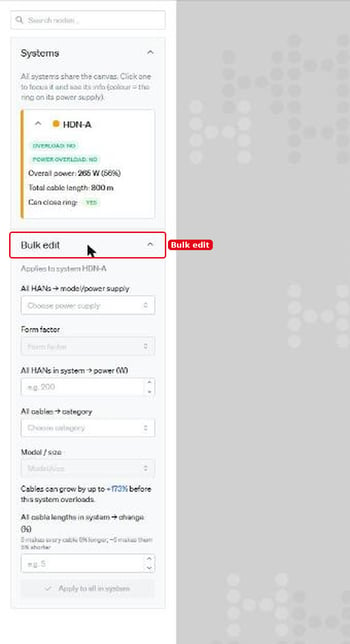
- Choose what to change. You can set the model or power supply and the power (W) of all HANs, the cable category and model/size of all cables, or change all cable lengths.
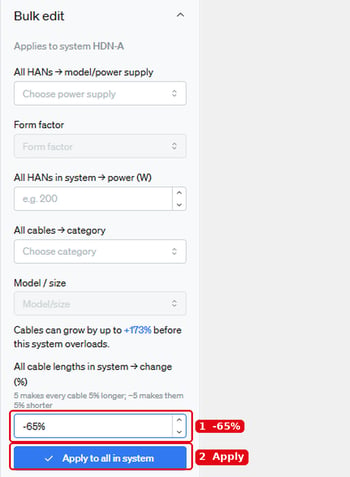
- Cable lengths change by a percentage, not to a fixed length. Enter, for example, -65 to make every cable 65% shorter (200 m becomes 70 m), then click Apply to all in system.
- All cables in the system are updated, including the ring cable. To undo the change, click Reset to original lengths.
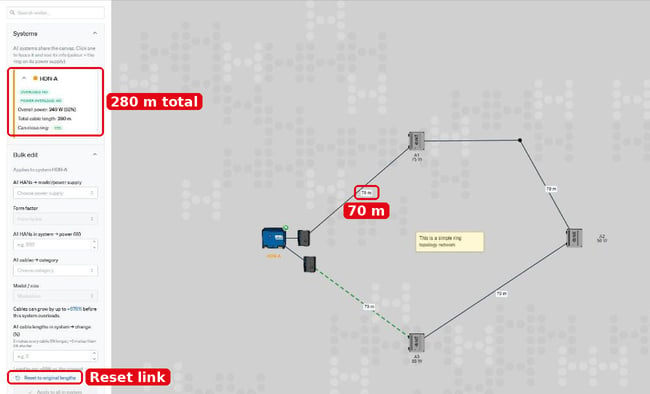
Tip: the panel shows how much the cables can grow before the system overloads, for example Cables can grow by up to +173%.
Select several HANs
- Click the first HAN, then hold Ctrl and click the other HANs you want. Selected HANs get a blue outline.
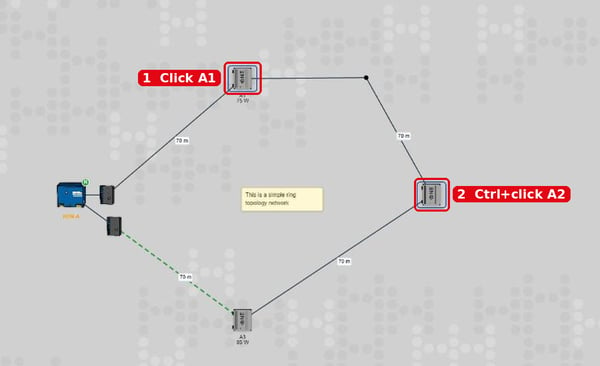
- Drag one of the selected HANs to move them all together.
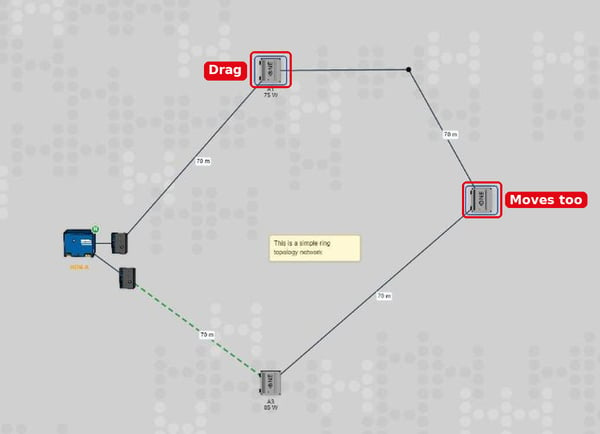
Change only the selected HANs
- With the HANs selected, scroll down in Bulk edit to Selected HANs. The number in brackets shows how many HANs are selected.
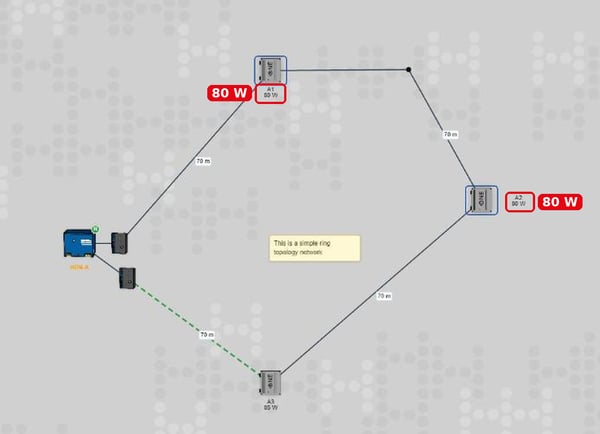
- Enter the new value, for example 80 in Selected HANs (2) → power (W), and click Apply to selected.
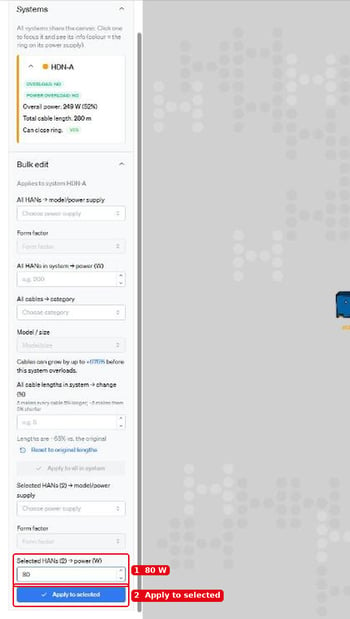
- Only the selected HANs change. The other HANs keep their values.
Please note: check the Validation panel and the system card after a bulk change, and export the design file to keep your work.